Using campaigns to group links
Create a campaign, assign links to it, and view aggregate analytics.
Updated February 15, 2026campaigns, analytics, team
Using campaigns to group links
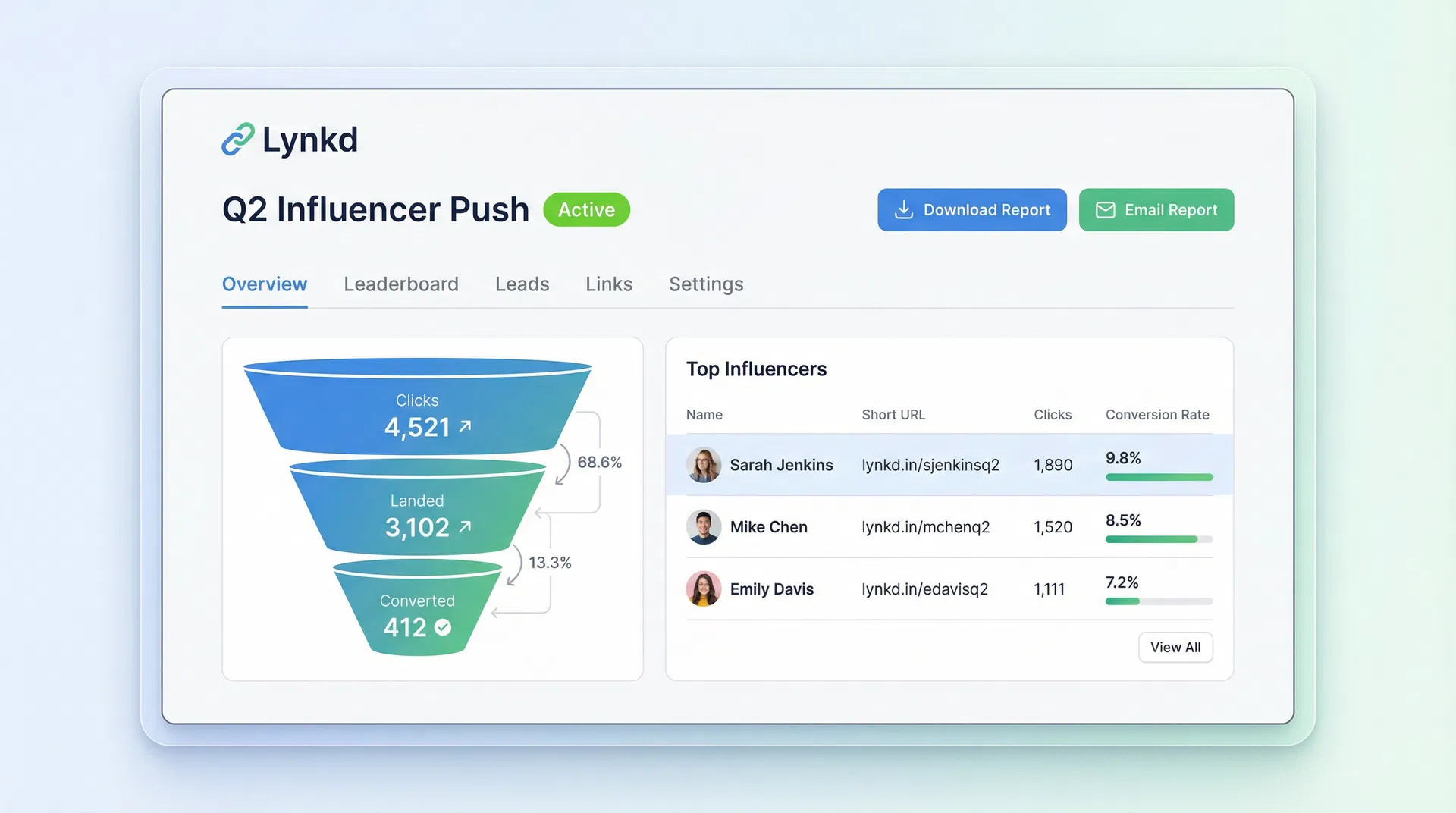
A campaign is a named container for a set of related links. It lets you:
- See aggregate click and conversion data across all links in the campaign.
- Share a specific campaign with a team member without giving them access to everything.
- Generate a PDF report for the campaign (Marketer+ plan).
Creating a campaign
- Go to Campaigns in the sidebar.
- Click New Campaign.
- Give it a name and an optional description.
- Click Create.
Assigning links to a campaign
When creating or editing a link, select the campaign from the Campaign dropdown. A link can belong to only one campaign at a time.
Campaign analytics
Click any campaign name to open its detail view. You will see:
- Total clicks across all links in the campaign.
- Per-link breakdown with click counts and conversion rates.
- Influencer leaderboard (if you have assigned different links to different creators).
Sharing a campaign with a team member
Go to Team, find the team member, and click Manage Access. Toggle the campaigns you want them to see. They will receive an email notification and can view the campaign's analytics from their workspace.
Was this article helpful?
Still stuck? Contact our support team