Inviting a team member
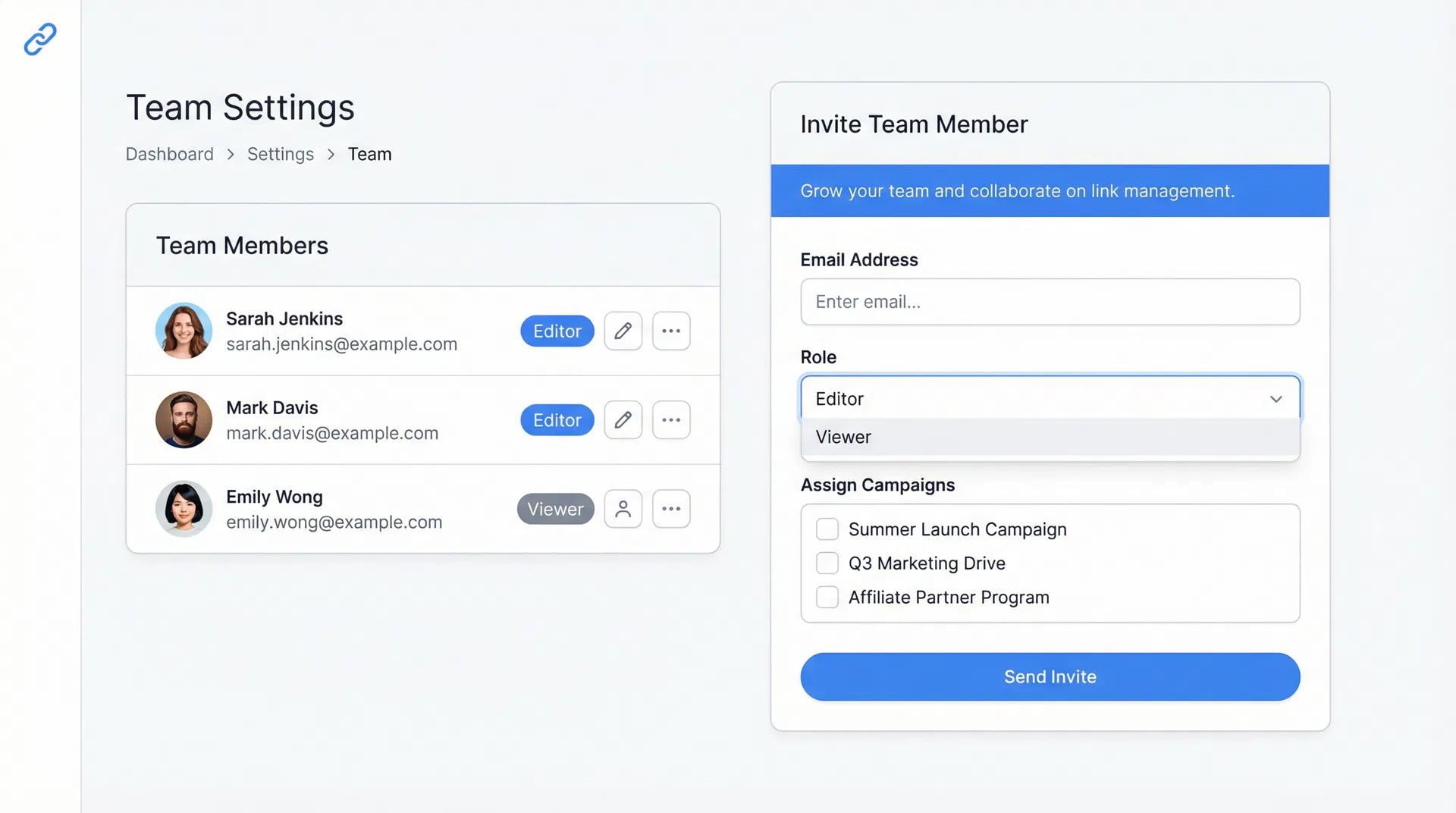
Send an invite by email and choose their role (Editor or Viewer).
Updated February 25, 2026team, invite, roles
Inviting a team member
Team members are available on the Marketer plan (1 member) and Agency plan (up to 10 members).
Sending an invite
- Go to Team in the sidebar.
- Click Invite Member.
- Enter the team member's email address and select their role:
- Editor — can create and edit links and campaigns within their granted access.
- Viewer — read-only access to analytics and campaign data.
- Click Send Invite.
The invitee receives an email with a secure link. They must click it to accept and will be prompted to create a Lynkd account if they do not already have one.
Invite expiry
Invites expire after 7 days. If the invitee has not accepted, you can resend the invite from the Team page.
Removing a team member
Click the three-dot menu next to any team member and select Remove. Their access is revoked immediately.
Was this article helpful?
Still stuck? Contact our support team